
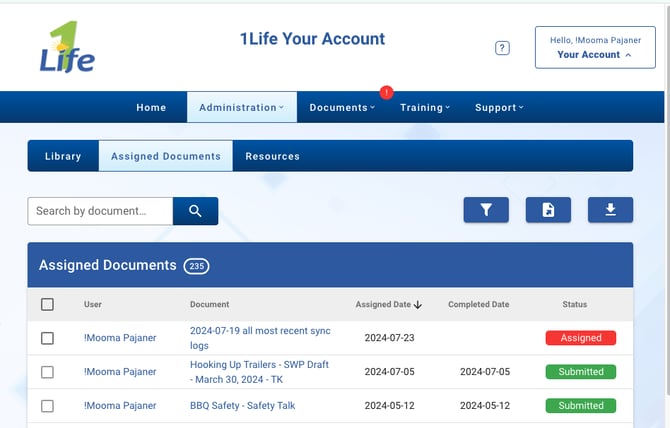
To export submitted documents:
-
Navigate to Administration - Documents - Assigned Documents
-
You will see a button on the left hand side between the filter and export. Click on the Mass Export button. NOTE: If you are looking for specific documents, you can filter the results prior to clicking the Mass Export button.
-
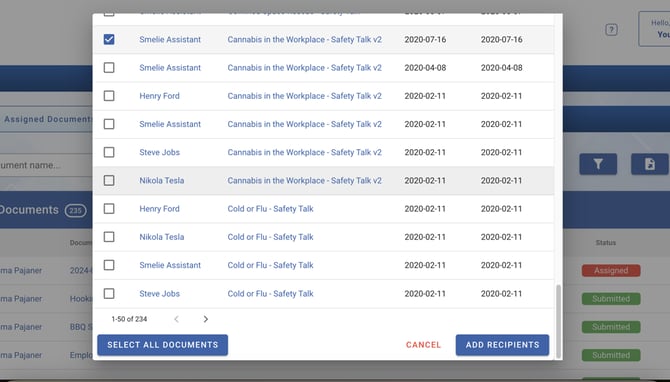
You can export submitted documents only and in the pop-up screen you will see only submitted. You can select all documents or hand pick which ones you would like to export.
-
Once you have your selection completed, click on Add Recipients on the bottom right.
- You can add third party recipients emails, or simply click Create Export as the default email will be to you. There can be multiple recipients.
- Once you click Create Export, you will see a pop up stating the export has started. Once the export is complete, the recipients will receive an email with the link to the zip folder. This link will be valid for 30 days. Please note that depending on the number of files, and the size of the documents, this process can take up to 24 hours.