
To add a record from the Resource Library into your company’s document library:
-
Click Administration
-
Click Documents from the drop down menu
-
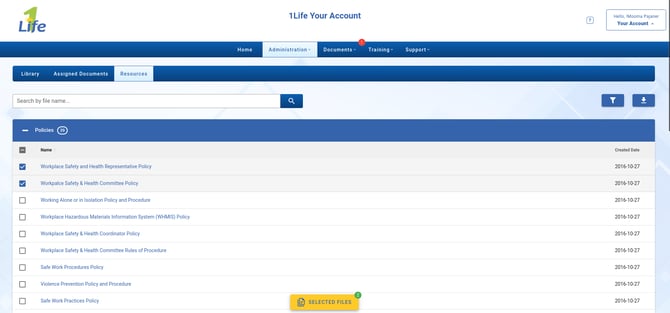
Click the Resources tab located at the top of the screen
-
Click the checkbox beside the resources you wish to add, or click Select All in the group heading
-
You will notice the Selected Files button appear at the bottom of the page which indicates how many files have been selected
-
-
Click Selected Files to set the folder in which the documents will be saved
-
Set if you would like to publish them to be visible to all users by clicking the eye icons
-
Click Confirm to import all of the selected documents
Note: A green background means the resource has previously been added to your library.